Build an Auto-Nightlight with Arduino
What if your Arduino could sense the world around it — not because you pressed a button, but because the room got darker?
That's exactly what we're building in this article. Using a tiny light-sensitive component and a few lines of code, you'll create an automatic nightlight: when the lights dim, the LED turns on by itself. When the room brightens up again, it turns off. No buttons, no switches — just the Arduino quietly watching the light and deciding what to do.
Along the way, you'll learn something fundamental about electronics: how to read values that aren't just "on" or "off," and a circuit trick called a voltage divider that makes it all possible.
Let's build.
What You'll Need
Here's your complete parts list:
- Arduino Uno board (or compatible clone)
- USB cable (Type A to Type B — the kind that looks like a printer cable)
- Breadboard — the white board with rows of holes for prototyping
- 1 × Photoresistor (LDR) — a small disc with a squiggly line pattern on top
- 1 × 10kΩ resistor (colored bands: Brown, Black, Orange, Gold)
- 1 × 5mm LED (any color — red is easiest)
- 1 × 220Ω resistor (colored bands: Red, Red, Brown, Gold)
- 4 × jumper wires (ideally red, blue, orange, and black)
- A computer with the Arduino IDE installed
If you bought a starter kit, all of these are almost certainly in the box. The photoresistor is one of the most common sensors included in beginner kits.
Know Your Components
The Photoresistor (LDR)
LDR stands for Light Dependent Resistor. It's a resistor whose value changes based on how much light hits it.
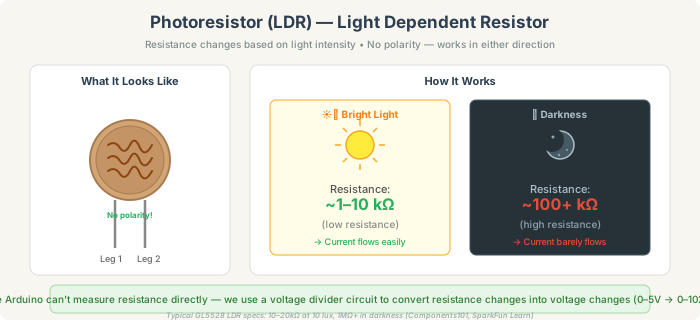
In bright light, its resistance drops to around 1–10 kΩ — electricity flows through it easily. In darkness, its resistance shoots up to 100 kΩ or more — barely any current gets through.
The useful thing about this: you don't need to "tell" the Arduino anything. The component itself changes in response to the environment, and the Arduino can detect that change.
Two practical details: the LDR has no polarity (either leg can go in either direction), and it's quite small — about the size of a pencil eraser.
Why You Need Two Resistors
Here's a problem. The Arduino can measure voltage (0V to 5V), but the LDR changes its resistance. Those aren't the same thing, and the Arduino has no way to measure resistance directly.
The solution is a voltage divider — a simple circuit that converts resistance changes into voltage changes.
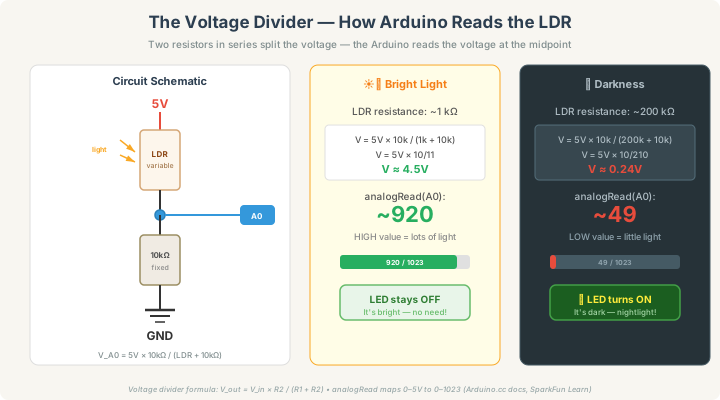
A voltage divider is just two resistors in series between 5V and GND. The voltage at the point between them (the "junction") depends on the ratio of the two resistances. Connect the Arduino's analog pin to that junction, and it can read the voltage — which tells it, indirectly, how much light is hitting the LDR.
When it's bright: the LDR has low resistance (~1 kΩ), so most of the 5V drops across the 10kΩ resistor. The junction sits near 5V. The Arduino reads a high number (around 800–1000).
When it's dark: the LDR has high resistance (~200 kΩ), so most of the 5V drops across the LDR. The junction drops close to 0V. The Arduino reads a low number (around 30–100).
That's the whole trick. Bright room → high number. Dark room → low number. Your code just needs to decide: "below what number should I call it dark?"
Digital vs. Analog: The Key Difference
In previous projects, you may have used digitalRead() — which returns exactly two values: HIGH (1) or LOW (0). That's like a light switch: on or off, nothing in between.
analogRead() is different. It returns a number from 0 to 1023, representing the voltage on the pin. This is a 10-bit resolution, meaning the Arduino slices the 0–5V range into 1,024 steps:
- 0V →
analogRead()returns 0 - 2.5V → returns ~512
- 5V → returns 1023
This opens up an entire world of sensors that produce gradual values — light, temperature, sound level, distance, moisture, and many more. The photoresistor is your first one.
Wiring It Up
We're building two mini-circuits on the breadboard: a sensor circuit (the LDR + 10kΩ voltage divider that feeds data to the Arduino) and an LED circuit (the output the Arduino controls).
Here's the complete wiring diagram:
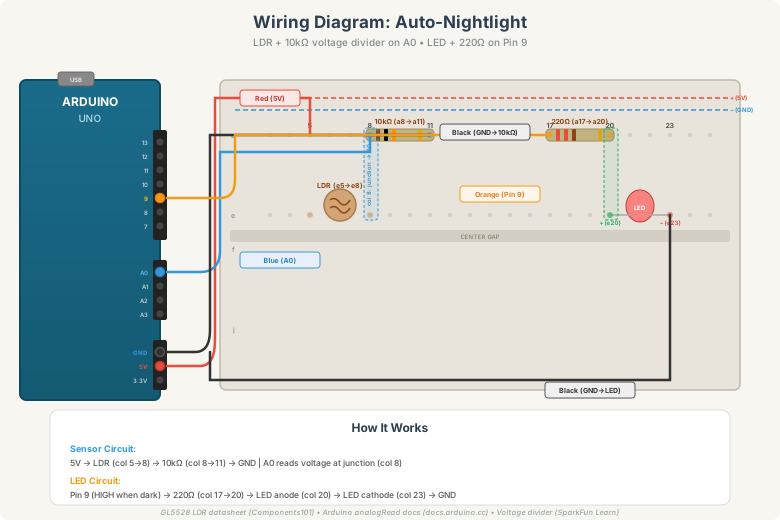
Sensor circuit (steps 1–4)
Step 1 — Place the LDR. Push one leg of the photoresistor into hole e5 and the other leg into hole e8. It doesn't matter which leg goes where — no polarity.
Step 2 — Place the 10kΩ resistor. Push one leg into hole a8 and the other into hole a11. Notice that one end shares column 8 with the LDR — this is the voltage divider junction. The breadboard connects them internally.
Step 3 — Red wire: Arduino 5V → column 5. Connect the Arduino's 5V pin to any hole in column 5 (rows a–e). This powers the top of the LDR.
Step 4 — Black wire: Arduino GND → column 11. Connect Arduino GND to any hole in column 11 (rows a–e). This grounds the bottom of the 10kΩ resistor.
Step 5 — Blue wire: Arduino A0 → column 8. Connect Arduino pin A0 to any hole in column 8 (rows a–e). This reads the voltage at the junction between the LDR and the 10kΩ resistor.
You now have a working voltage divider. The Arduino can read the light level — we just haven't given it an LED to control yet.
LED circuit (steps 6–8)
Step 6 — Place the 220Ω resistor. Push one leg into hole a17 and the other into hole a20.
Step 7 — Place the LED. Push the longer leg (anode, +) into hole e20 and the shorter leg (cathode, −) into hole e23. The anode shares column 20 with the resistor — connected internally.
Step 8 — Orange wire: Arduino pin 9 → column 17. Connect Arduino pin 9 to any hole in column 17 (rows a–e).
Step 9 — Black wire: Arduino GND → column 23. Connect Arduino GND to any hole in column 23 (rows a–e). You can use the same GND pin or a separate one — the Uno has multiple.
That's it: two components for sensing, two for output, four wires.
The Code
Step 1: Read and display the light level
Before we write the nightlight logic, let's see what the sensor is actually reporting. Upload this sketch:
int sensorPin = A0;

void setup() {
  Serial.begin(9600);
}

void loop() {
  int lightLevel = analogRead(sensorPin);
  Serial.println(lightLevel);
  delay(300);
}
After uploading, open the Serial Monitor (click the magnifying glass icon in the top-right of the Arduino IDE, or press Ctrl+Shift+M). Set the baud rate to 9600.
You'll see numbers streaming by. Try covering the LDR with your hand — the numbers drop. Remove your hand — they rise. Wave your hand over it slowly and watch the values change in real time.
Take note of two numbers:
- The value when the room is at normal brightness (probably 600–900)
- The value when you cover the LDR with your hand (probably 50–200)
You'll need these to pick your threshold.
Step 2: The nightlight
Now let's add the LED logic:
int sensorPin = A0;
int ledPin = 9;
int threshold = 300;

void setup() {
  Serial.begin(9600);
  pinMode(ledPin, OUTPUT);
}

void loop() {
  int lightLevel = analogRead(sensorPin);
  Serial.println(lightLevel);

  if (lightLevel < threshold) {
    digitalWrite(ledPin, HIGH);
  } else {
    digitalWrite(ledPin, LOW);
  }

  delay(200);
}
Upload it, and try covering the LDR with your hand. The LED should turn on when it's dark and off when it's bright.
Understanding the code
analogRead(sensorPin) — Reads the voltage on pin A0 and returns a number between 0 (0V) and 1023 (5V).
threshold = 300 — This is our "is it dark?" cutoff. Below 300 means dark, above means bright. You'll adjust this based on your own Serial Monitor readings — every LDR and room is slightly different.
Serial.println(lightLevel) — We keep this in the final code so you can always open the Serial Monitor and see the live values. This is invaluable for calibrating your threshold.
if (lightLevel < threshold) — The core decision. Low reading means dark, so turn the LED on. High reading means bright, so turn it off.
Finding Your Threshold
The threshold value (300 in the example) is a starting point. Your ideal value depends on your specific LDR, the 10kΩ resistor's tolerance, and the ambient light in your room.
Here's how to calibrate it:
- Upload the code and open the Serial Monitor.
- Set the room to the brightness level where you'd want the nightlight to turn on.
- Read the number on the Serial Monitor. That's your threshold.
For example, if covering the sensor gives readings around 120 and your normally-lit room gives readings around 750, a threshold of 300–400 would work well. It should be comfortably between your "dark" and "bright" readings so the nightlight doesn't flicker at the boundary.
Troubleshooting
LED is always on, regardless of light. Your threshold is probably too high. Open the Serial Monitor and check what values you're getting in normal light. Set the threshold below that number.
LED is always off, even when you cover the sensor. Your threshold might be too low, or the sensor circuit isn't reading correctly. Check Serial Monitor — if you see 0 or very low numbers all the time, verify that the red wire goes to 5V (not 3.3V) and the blue wire goes to A0.
Serial Monitor shows 0 all the time. The voltage divider isn't completing a circuit. Double-check that the LDR and 10kΩ resistor share column 8, and that column 5 connects to 5V and column 11 connects to GND.
Serial Monitor shows 1023 all the time. The 10kΩ resistor might not be connected properly, or the GND wire is loose. The pin is reading full voltage because there's no path to ground.
Values are jumpy or erratic. Some fluctuation is normal (the LDR is sensitive). If it's causing the LED to flicker on and off near the threshold, see the "hysteresis" idea below.
I see garbled characters in Serial Monitor. Make sure the baud rate dropdown in the Serial Monitor matches the code — both should be 9600.
Make It Your Own
Once the basic nightlight works, try these enhancements:
Hysteresis (anti-flicker): When the light level is right near the threshold, the LED might flicker on and off. The fix is to use two thresholds — one to turn on, one to turn off, with a gap between them:
int sensorPin = A0;
int ledPin = 9;
int onThreshold = 250;
int offThreshold = 400;
bool ledOn = false;

void setup() {
  pinMode(ledPin, OUTPUT);
}

void loop() {
  int lightLevel = analogRead(sensorPin);

  if (lightLevel < onThreshold) {
    ledOn = true;
  } else if (lightLevel > offThreshold) {
    ledOn = false;
  }

  digitalWrite(ledPin, ledOn ? HIGH : LOW);
  delay(100);
}
Now the LED turns on when the reading drops below 250, but doesn't turn off until it rises above 400. That gap prevents flickering.
Gradual brightness: Instead of just on/off, use analogWrite() (PWM) to make the LED brightness proportional to the darkness:
int brightness = map(lightLevel, 0, 1023, 255, 0);
analogWrite(ledPin, brightness);
The map() function rescales the sensor range (0–1023) to the LED brightness range (255–0, inverted because darker = brighter LED).
Multiple LEDs: Add more LEDs on different pins that light up in stages as it gets darker — like a light meter in reverse.
Data logging: Print timestamped readings to the Serial Monitor and copy them into a spreadsheet to chart the light levels in your room over time.
What You Just Learned
This small project introduced several big ideas. You understand the difference between digital (on/off) and analog (0–1023) input. You know what a voltage divider is and why it's needed to read a resistive sensor. You used analogRead() to measure a real-world quantity — light — on a continuous scale. You used the Serial Monitor as a debugging and calibration tool. And you wrote code that makes decisions based on how much of something there is, not just whether it exists.
That shift — from binary (yes/no) to analog (how much?) — is what makes electronics genuinely useful. Temperature, distance, moisture, sound level, force, position... they're all analog values, and they all use the same analogRead() approach you just learned.
Your Arduino isn't just listening anymore — it's measuring.
Part of the Arduino for Beginners series. Other articles: Understanding the Basics • Your First Blink • LED + Resistor Circuit • Button-Controlled LED