Build a Wi-Fi Weather Station with ESP8266
What if your project could reach beyond the room — pull live data from the internet and display it on a tiny screen?
That's exactly what we're building. An ESP8266 microcontroller connects to your Wi-Fi network, fetches real weather data from an online API, and displays the temperature, humidity, and conditions on a crisp little OLED screen. No phone, no computer — just a self-contained device that always shows the current weather.
This project is a turning point: it's the first time your microcontroller talks to the outside world. Along the way, you'll learn how to connect to Wi-Fi, make HTTP requests, parse JSON data, and drive a graphical OLED display. These are the building blocks of IoT — the Internet of Things.
Let's build.
What You'll Need
- ESP8266 board (NodeMCU or Wemos D1 Mini — both work identically)
- Micro USB cable (for power and programming)
- 1 × 0.96" I2C OLED display (SSD1306 controller, 128×64 pixels)
- 4 × jumper wires (female-to-female if both sides have header pins)
- A computer with the Arduino IDE installed
- A Wi-Fi network with internet access
- A free OpenWeatherMap API key (we'll set this up below)
The 0.96" OLED is one of the most popular displays in the maker world — tiny, sharp, and runs perfectly at 3.3V, which is exactly what the ESP8266 provides.
What Is the ESP8266?
If the Arduino Uno is a reliable workhorse, the ESP8266 is its internet-connected cousin. It's a microcontroller with built-in Wi-Fi, which means it can connect to your home network, fetch data from web servers, and even host its own web pages — all without any extra hardware.
The NodeMCU is the most beginner-friendly ESP8266 board. It has a USB port for programming, a voltage regulator, and easy-to-use pin labels. You program it with the same Arduino IDE you already know, just with a different board package installed.
Key differences from the Arduino Uno:
- 3.3V logic — the ESP8266 runs at 3.3V, not 5V. Never connect 5V to its pins or you may damage it permanently
- Wi-Fi built in — no shields or extra modules needed
- Pin labels — uses D0–D8 instead of 0–13, and the internal GPIO numbers don't match the labels (D1 is actually GPIO5, D2 is GPIO4)
- Faster processor — 80 MHz vs the Uno's 16 MHz, with more memory
Setting Up the Arduino IDE for ESP8266
If you haven't programmed an ESP8266 before, you need to add the board package to the Arduino IDE:
- Open the Arduino IDE
- Go to File → Preferences
- In the Additional Board Manager URLs field, paste:
http://arduino.esp8266.com/stable/package_esp8266com_index.json - Click OK
- Go to Tools → Board → Boards Manager
- Search for "esp8266" — install "esp8266 by ESP8266 Community"
- After installation, go to Tools → Board and select "NodeMCU 1.0 (ESP-12E Module)"
You only need to do this once. From now on, the ESP8266 will appear in your board list.
Know Your Components
The OLED Display
The 0.96" OLED is a tiny display with 128×64 individually lit pixels. Unlike an LCD that needs a backlight, each pixel on an OLED produces its own light — giving you sharp white text on a true black background.
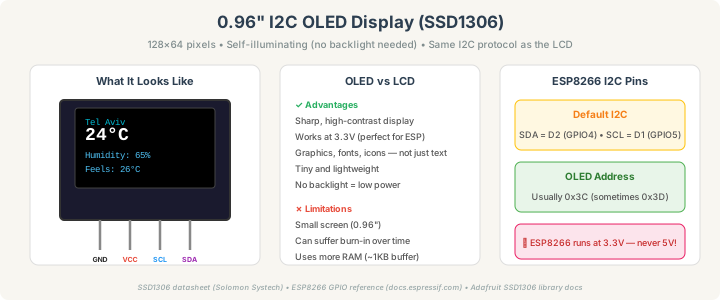
It connects via I2C (same protocol you may have used with an LCD). On the ESP8266, the default I2C pins are:
- SDA → D2 (GPIO4)
- SCL → D1 (GPIO5)
The OLED's I2C address is typically 0x3C (unlike the LCD which usually uses 0x27).
Because the OLED is a graphical display — not just a character display — you can draw text in any size, shapes, icons, and progress bars. The tradeoff is that it uses about 1KB of RAM for its pixel buffer, but the ESP8266 has plenty.
Getting a Free API Key
We'll use OpenWeatherMap, which offers a free tier that's more than enough for this project.
- Go to openweathermap.org and create a free account
- After signing in, go to API Keys in your account page
- Copy your API key (it looks like a long string of letters and numbers)
- Note: new API keys can take up to 2 hours to activate. If you get errors right away, wait and try again
The free tier allows 1,000 API calls per day — updating every 10 minutes uses only 144 calls, so you're well within the limit.
Wiring It Up
This is one of the simplest wiring setups you'll encounter — just 4 wires from the OLED to the ESP8266. No breadboard needed.
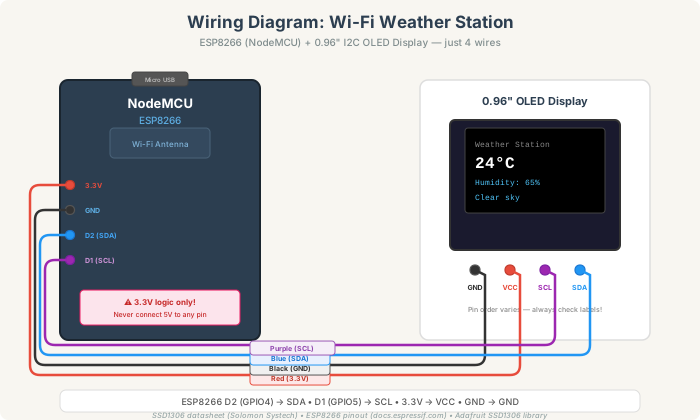
Red wire: OLED VCC → ESP8266 3.3V
Black wire: OLED GND → ESP8266 GND
Blue wire: OLED SDA → ESP8266 D2
Purple wire: OLED SCL → ESP8266 D1
Important: Connect VCC to the 3.3V pin, not VIN (which is 5V from USB). The OLED runs on 3.3V and the ESP8266's I/O pins are 3.3V — everything matches perfectly.
Check the pin labels printed on your OLED module — the order of GND, VCC, SCL, and SDA varies between manufacturers.
Installing the Libraries
You need three libraries. In the Arduino IDE, go to Sketch → Include Library → Manage Libraries and install:
- "Adafruit SSD1306" by Adafruit — the OLED display driver
- "Adafruit GFX Library" by Adafruit — graphics primitives (text, shapes, etc.). Install this when prompted as a dependency, or install it manually
- "ArduinoJson" by Benoît Blanchon — for parsing the weather API's JSON response
The ESP8266 Wi-Fi and HTTP libraries come built-in with the board package — no extra installation needed.
The Code
Replace YOUR_WIFI_SSID, YOUR_WIFI_PASSWORD, and YOUR_API_KEY with your actual values. Replace YOUR_CITY with your city name (e.g., Tel Aviv, London, New York).
#include <ESP8266WiFi.h>
#include <ESP8266HTTPClient.h>
#include <WiFiClient.h>
#include <ArduinoJson.h>
#include <Wire.h>
#include <Adafruit_GFX.h>
#include <Adafruit_SSD1306.h>

#define SCREEN_WIDTH 128
#define SCREEN_HEIGHT 64
#define OLED_RESET -1

Adafruit_SSD1306 display(SCREEN_WIDTH, SCREEN_HEIGHT, &Wire, OLED_RESET);

const char* ssid = "YOUR_WIFI_SSID";
const char* password = "YOUR_WIFI_PASSWORD";
const char* apiKey = "YOUR_API_KEY";
const char* city = "YOUR_CITY";

unsigned long lastUpdate = 0;
const unsigned long updateInterval = 600000;

float temperature = 0;
float humidity = 0;
float feelsLike = 0;
String description = "";

void setup() {
  Serial.begin(115200);

  if (!display.begin(SSD1306_SWITCHCAPVCC, 0x3C)) {
    Serial.println("OLED not found!");
    while (true);
  }

  display.clearDisplay();
  display.setTextColor(SSD1306_WHITE);
  display.setTextSize(1);
  display.setCursor(0, 0);
  display.println("Connecting to");
  display.println(ssid);
  display.display();

  WiFi.begin(ssid, password);
  int attempts = 0;
  while (WiFi.status() != WL_CONNECTED && attempts < 30) {
    delay(500);
    Serial.print(".");
    attempts++;
  }

  if (WiFi.status() == WL_CONNECTED) {
    Serial.println("\nConnected!");
    Serial.print("IP: ");
    Serial.println(WiFi.localIP());

    display.clearDisplay();
    display.setCursor(0, 0);
    display.println("Wi-Fi connected!");
    display.print("IP: ");
    display.println(WiFi.localIP());
    display.display();
    delay(2000);

    fetchWeather();
  } else {
    display.clearDisplay();
    display.setCursor(0, 0);
    display.println("Wi-Fi failed!");
    display.println("Check credentials");
    display.display();
  }
}

void loop() {
  if (WiFi.status() == WL_CONNECTED) {
    if (millis() - lastUpdate >= updateInterval) {
      fetchWeather();
    }
  }
  delay(100);
}

void fetchWeather() {
  WiFiClient client;
  HTTPClient http;

  String url = "http://api.openweathermap.org/data/2.5/weather?q=";
  url += city;
  url += "&appid=";
  url += apiKey;
  url += "&units=metric";

  Serial.print("Fetching: ");
  Serial.println(url);

  http.begin(client, url);
  int httpCode = http.GET();

  if (httpCode == 200) {
    String payload = http.getString();
    Serial.println(payload);

    JsonDocument doc;
    DeserializationError error = deserializeJson(doc, payload);

    if (!error) {
      temperature = doc["main"]["temp"];
      humidity = doc["main"]["humidity"];
      feelsLike = doc["main"]["feels_like"];
      description = doc["weather"][0]["description"].as<String>();

      Serial.print("Temp: ");
      Serial.print(temperature);
      Serial.print("°C  Humidity: ");
      Serial.print(humidity);
      Serial.print("%  ");
      Serial.println(description);

      updateDisplay();
      lastUpdate = millis();
    } else {
      Serial.print("JSON error: ");
      Serial.println(error.c_str());
    }
  } else {
    Serial.print("HTTP error: ");
    Serial.println(httpCode);

    display.clearDisplay();
    display.setCursor(0, 0);
    display.print("HTTP error: ");
    display.println(httpCode);
    display.display();
  }

  http.end();
}

void updateDisplay() {
  display.clearDisplay();

  display.setTextSize(1);
  display.setCursor(0, 0);
  display.print(city);

  display.drawLine(0, 10, 127, 10, SSD1306_WHITE);

  display.setTextSize(2);
  display.setCursor(0, 16);
  display.print(temperature, 1);
  display.setTextSize(1);
  display.print(" C");

  display.setTextSize(1);
  display.setCursor(0, 36);
  display.print("Feels: ");
  display.print(feelsLike, 1);
  display.print(" C");

  display.setCursor(0, 48);
  display.print("Humid: ");
  display.print(humidity, 0);
  display.print("%");

  if (description.length() > 0) {
    display.setCursor(0, 58);
    String desc = description;
    if (desc.length() > 21) desc = desc.substring(0, 21);
    display.print(desc);
  }

  display.display();
}
How to upload
- Go to Tools → Board → NodeMCU 1.0 (ESP-12E Module)
- Go to Tools → Port and select the ESP8266's COM port
- Set Upload Speed to 115200
- Click Upload (→)
The ESP8266 takes a few seconds longer to upload than an Arduino Uno. After uploading, the OLED will show the Wi-Fi connection progress, then the weather data.
Understanding the code
ESP8266WiFi.h and ESP8266HTTPClient.h — Built-in libraries for Wi-Fi and HTTP. These handle all the networking protocols — TCP connections, DNS resolution, HTTP headers — in simple function calls.
WiFi.begin(ssid, password) — Starts connecting to your Wi-Fi network. It runs in the background; we poll WiFi.status() in a loop until it returns WL_CONNECTED.
http.begin(client, url) and http.GET() — Makes an HTTP GET request to the OpenWeatherMap API. This is the same kind of request your browser makes when you visit a web page.
deserializeJson(doc, payload) — Parses the JSON response into a structured object you can navigate with keys, like doc["main"]["temp"]. ArduinoJson handles all the parsing — you just access the fields you need.
updateInterval = 600000 — 600,000 milliseconds = 10 minutes. We use millis() instead of delay() so the ESP8266 stays responsive between updates.
display.setTextSize(2) — The OLED's text size is a multiplier of the base 6×8 pixel font. Size 2 means 12×16 pixels per character — big enough to read across a room.
What If It Doesn't Work?
OLED stays dark.
Check the I2C address — try changing 0x3C to 0x3D. Also verify the wiring: SDA goes to D2 (not D1) and SCL goes to D1 (not D2). These are easy to swap.
"Wi-Fi failed!" on screen. Double-check your SSID and password in the code. The ESP8266 supports 2.4 GHz networks only — it cannot connect to 5 GHz Wi-Fi. If your router broadcasts both, make sure you're targeting the 2.4 GHz one.
"HTTP error: 401". Your API key is invalid or hasn't activated yet. New keys take up to 2 hours. Check that you copied it correctly with no extra spaces.
"HTTP error: 404". The city name wasn't recognized. Use the English name (e.g., "Tel Aviv" not "תל אביב"). You can verify your city works by pasting the URL directly in a browser.
"HTTP error: -1" or connection fails. The ESP8266 might not have internet access. Check that your Wi-Fi network has working internet, and that no firewall is blocking the device.
Garbled text in Serial Monitor. Set the Serial Monitor baud rate to 115200 (not 9600). The ESP8266's default boot messages also print at 74880 baud — the garbled text at startup is normal.
Make It Your Own
Add a weather icon: Use display.drawBitmap() to show a sun, cloud, or rain icon based on the description string. The Adafruit GFX library supports custom bitmap images.
Multi-city display: Cycle through several cities every 10 seconds, showing each one's weather in turn.
Indoor + outdoor comparison: Add a DHT11 sensor to measure indoor temperature alongside the outdoor data from the API.
Temperature graph: Store the last 128 readings and draw a tiny line graph across the bottom of the OLED, showing the temperature trend over the day.
Alert threshold: If the temperature goes above or below a certain value, blink an LED or show a warning screen.
Deep sleep for battery power: The ESP8266 has a deep sleep mode that drops power consumption to microamps. Wake up every 30 minutes, fetch weather, update display, and sleep again — a battery-powered weather station.
What You Just Learned
This project crossed a major threshold: your microcontroller is now connected to the internet. You learned how to configure the Arduino IDE for the ESP8266, connect to a Wi-Fi network, make HTTP requests to a web API, parse JSON responses, and display formatted information on an OLED screen.
These aren't just Arduino skills — they're the foundation of IoT development. The same pattern (connect → request → parse → display) applies whether you're building a weather station, a stock ticker, a smart home dashboard, or a notification display. The ESP8266 just made your projects internet-aware.
Part of the Arduino Intermediate series. Previous: Temperature & Humidity Monitor (Arduino Uno) • Beginner series: Basics • First Blink • LED + Resistor • Button LED • Auto-Nightlight